You can build a working admin panel in an afternoon by describing what you need in plain language. With Lovable, an AI-powered no-code builder, you can build the data layer, interface, permissions, and backend together instead of setting up each piece separately.
Admin panels are a common kind of internal tool for teams that manage users, orders, content, or support tickets. They need a centralized interface to view and act on that data. The challenge is that most no-code admin panel builders assume you already have a database running and an API ready to connect. If you're starting from zero, with no database, no running app, and only the knowledge of what you need to manage, those tools leave you stuck early. This guide covers how to build an admin panel from scratch: the data layer, the interface, the permissions, and the backend, all built together.
What an Admin Panel Actually Needs
A usable admin panel needs four core components working together.
The first is a data source, a database or structured store where your business information lives. Without it, the panel has nothing to display and nothing to act on. The second is a CRUD interface: the tables, forms, filters, and buttons that let your team create, read, update, and delete records without writing database queries.
The third is authentication with role-based access control. Authentication confirms who someone is; role-based access determines what they're allowed to see and do. An admin should be able to edit pricing; a support agent should only view customer records. The fourth component is action triggers, automated responses that fire when something specific happens, like sending a notification when an order ships or flagging a support ticket marked urgent.
These four layers turn a static data viewer into an operational tool your team actually uses daily. They also explain why choosing the right builder matters: any tool you evaluate needs to handle all four, or you'll hit a wall mid-build. With Lovable, you get those four layers in a single environment: data layer, interface, permissions, and triggers, generated from a natural language prompt and backed by a real database.
Why No-Code Admin Panel Tools Often Fall Short
Most no-code admin panel builders work best when your infrastructure already exists.
Tools like Retool, Appsmith, and Softr use a connector-first workflow. The workflow is the same across all three: connect to an external data source, write or configure queries against it, then bind results to UI components. If you already have a PostgreSQL database with live data and an API your team manages, these tools let you build a clean admin interface on top of that infrastructure quickly.
The Infrastructure Prerequisite
The challenge appears for teams starting from scratch without existing infrastructure.
Retool's setup requires a PostgreSQL setup, database credentials, and network configuration before you can build anything functional. Core workflows rely on SQL queries and JavaScript expressions. Appsmith's PostgreSQL setup requires host whitelist, server-side tasks that assume database administration experience. Softr has moved closer to accessibility with Softr databases.
For teams starting without a database or API, these platforms require solving an infrastructure problem before the admin panel problem. That is where the approach diverges. Instead of connecting to something that already exists, you need a tool that builds everything at once.
How to Build an Admin Panel From a Prompt
The fastest path is to describe what you want in plain language and build the full stack together.
Structuring Your First Prompt
Your first prompt should define the data, roles, and actions the panel needs.
A prompt for a customer management panel might look like this: "Build an admin panel for managing customer accounts. Include a data table with columns for name, email, subscription status, and signup date. Add the ability to filter by status, edit individual records, and export the table to CSV. Create two roles: Admin with full access, and Support Agent with read-only access plus the ability to update subscription status."
That single prompt gives you enough context to generate the interface, the data structure, the authentication flow, and the role logic. You do not need to specify the tech stack, the database schema, or the component library. We built Lovable so you can describe what you want and start interacting with a working application immediately.
This is also where vibe coding becomes useful in practice: you describe the workflow in plain language, then refine the result as the app takes shape.
Using Agent Mode for Multi-Step Builds
Agent Mode is the right tool when your admin panel spans multiple views or coordinated logic.
For admin panels with multiple views or complex logic, Agent Mode is the right tool. Autonomous AI development with independent codebase exploration, proactive debugging, real-time web search, and automated problem-solving. Chat Mode is an interactive collaborative interface for planning, debugging, and iterative development with multi-step reasoning capabilities.
Together, they help you coordinate changes across frontend, backend, and configuration in a single pass. Authentication, routing, data tables, and permissions are built together rather than added one by one.
A key workflow feature is the Prompt Queue. You can submit follow-up prompts while a task is still running; each enters a visible queue you can reorder, edit, or pause. For an admin panel build, this means you can queue steps like "add a user detail view that opens when I click a row," "create an activity log page," and "add a dashboard with signup metrics" without waiting for each to finish before typing the next.
We show this workflow in a Resend tutorial, building a full CRM with an admin dashboard in under one hour. The sequence covered Supabase authentication, an admin route with redirect logic, a contacts table, a sliding detail pane, email send functionality, and database writes, all through Agent Mode prompts.
Prompting Tips That Save Iteration Cycles
A phased build is usually the fastest way to get a stable result.
The prompting handbook recommends a phased approach: start with core layout and navigation, then add authentication, then layer in data integration and actions. Breaking the build into discrete milestones reduces errors and makes each generation step easier to verify. If something goes wrong in a complex prompt, it is easier to isolate the cause when you build in focused blocks.
Adding the Right Features
Permissions, table actions, and triggers are what turn a simple table into a tool your team can rely on.
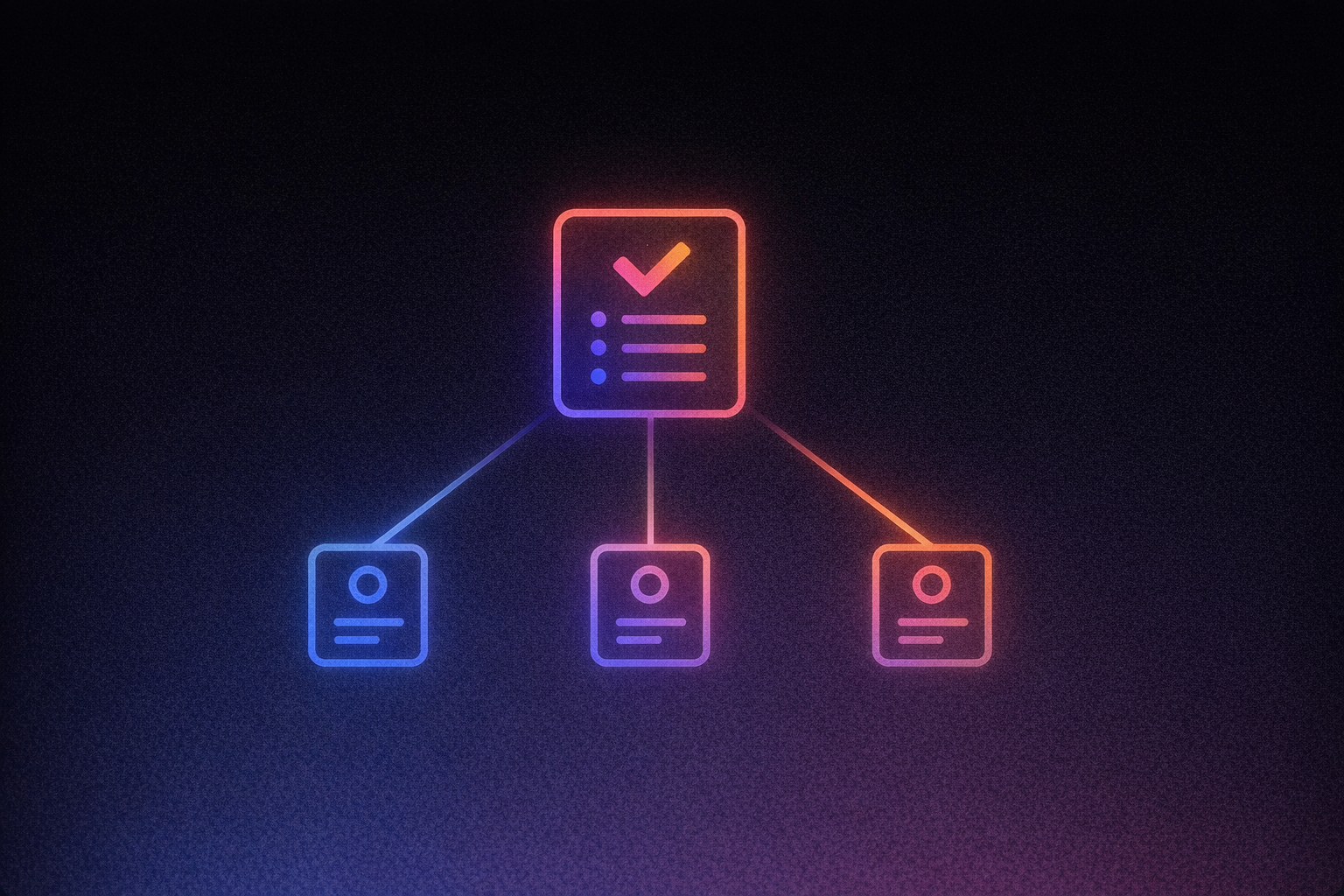
Role-Based Permissions
Clear roles are what keep your admin panel useful and safe.
Start by mapping your team's job functions to roles. Each role gets a specific permission set: what data they can view, what they can edit, and what actions they can trigger. Prompt Lovable with the roles explicitly, "Admin can edit and delete all records; Editor can edit but not delete; Viewer has read-only access," and the generated application will enforce those boundaries in both the UI and the data layer. Keep those roles specific during setup so RBAC continues to protect real data once your panel is in use.
Data Table Actions
The main table should support the routine actions your team uses every day.
The core operations, edit, delete, filter, search, and export, should be available from the main table view. Inline editing, clicking a cell to change its value directly, speeds up routine tasks. Bulk actions let your team update or remove multiple records at once. If your panel manages orders, add status filters so the team can quickly surface everything marked "pending" or "flagged."
Status Triggers
Triggers handle the follow-up work your team should not have to do manually.
Triggers convert manual follow-up tasks into automatic responses. When an order status changes to "shipped," the customer gets notified. When a support ticket is flagged "urgent," the on-call team member gets pinged. Describe these if/then rules in your prompt, and Lovable generates the logic alongside the interface.
After the initial generation, Visual Edits helps you refine the interface without writing another prompt. Direct UI manipulation that lets you click and modify interface elements in real-time without writing prompts. Visual Edits lets you adjust column widths, change button colors, tweak spacing, and update typography by clicking on the element and editing its properties in a side panel. Visual Edits are credit-free, so you can iterate on the look and feel as much as you want without burning through your build budget.
If you'd rather start from a foundation than a blank prompt, browse templates in our Internal Tools category include options like HireFlow, a full-stack applicant tracking system with role-based permissions, pipeline management, and a multi-view interface. You can customize any template with your own data fields, roles, and actions using the same prompting and visual editing workflow.
Connecting Your Backend
Your admin panel becomes operational when you connect it to a persistent database.
What Supabase Adds
Supabase gives your panel the backend services that make it persistent and usable by a real team.
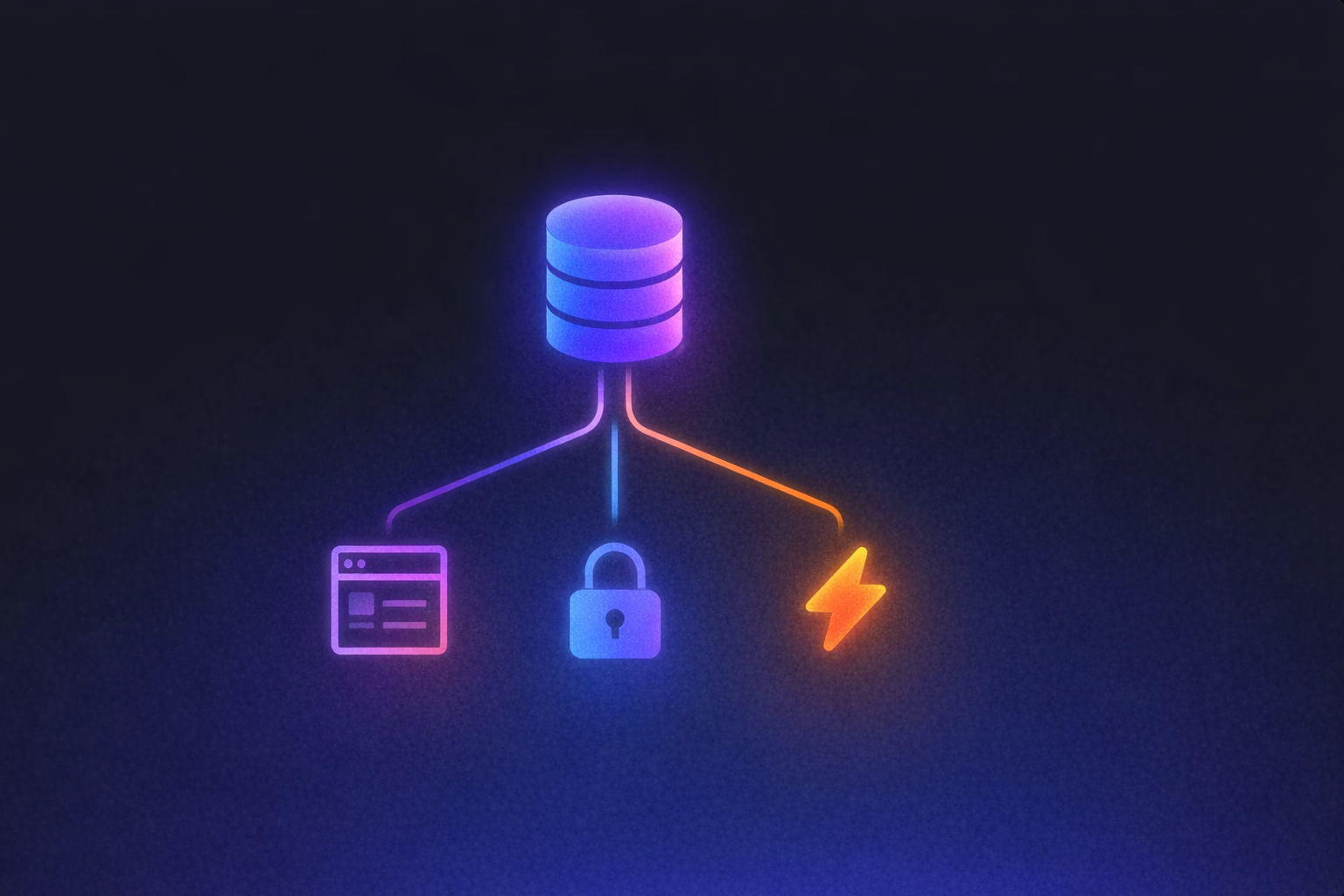
Connecting Supabase gives your panel a PostgreSQL database for persistent storage, user authentication, file storage, real-time data updates, and edge functions for backend logic. Your data lives in Supabase independently of your Lovable project. It persists regardless of what you change in the interface layer. You can follow the Supabase docs for how that works inside Lovable.
Setting Up the Connection
The setup is a guided OAuth flow inside the editor.
Create a free Supabase account, start a new project in the Supabase dashboard, then go to your Lovable project settings, open the Integrations tab, and click "Connect Supabase." You'll authorize via OAuth, select the project to link, and receive a confirmation in chat. The entire process takes a few minutes.
Once connected, describe the data you need in chat, "create a table for customer feedback with columns for submission date, message, email, and status," and we generate the SQL for you. You run it in the Supabase SQL Editor, confirm in chat, and your panel is reading and writing to a live database.
Row-Level Security for Permissions
RLS is what makes your permission model hold up at the database layer.
Row-level security, or RLS, is the database-level enforcement of your permission rules. Even if someone bypasses your login screen or exploits a frontend bug, RLS ensures they can only access the rows they're authorized to see. We set up basic RLS policies automatically when you connect Supabase, and you can audit your security configuration using the built-in RLS scan directly from chat.
The most common patterns for admin panels map directly to business needs: personal data access, where users see only their own records; team-based access, where team members share data; public content with ownership, where anyone can read but only owners can modify; and organization-based access, where users within a company see company-wide records.
One critical detail for beginners is that a table with RLS enabled but no policies configured will silently return zero rows. Always confirm your policies are defined after enabling RLS on each table.
Prototype Versus Production
Sample data is useful for testing, but a real database is what makes the panel operational.
Before Supabase is connected, your panel works with generated sample data, which is useful for testing layout and flow but not persistent. After connection, every record your team creates, edits, or deletes is written to a real database. Authentication is enforced through Supabase Auth, and the security docs cover the steps to review before opening your panel to your team.
Your Admin Panel Is Ready, Now Build What's Next
Once your admin panel is live, you can expand it into the other internal tools your team keeps postponing.
You now have a working admin panel with real data, enforced permissions, and a live backend, built without writing code or waiting weeks for a developer. That gives you a foundation to expand from.
The real value of learning how to build an admin panel this way is what it unlocks next. Invite team members and assign them roles so your operations staff can manage data directly instead of routing requests through you. Add new views as your needs evolve, a reporting dashboard, an approval queue, or a customer detail page, by describing them in chat and letting Agent Mode handle the build. Connect additional tools through edge functions as your workflows grow more complex. If you want to extend the codebase further, GitHub sync lets you sync and own your code completely.
Teams are already building this way. In a Lovable case study, a CRO at Sentry used the platform as described in the Sentry story by feeding screenshots of a pricing spreadsheet into Lovable and turning it into a working internal ROI calculator adopted by the sales team. In another Lovable case study, eXp Realty's Chief Innovation Officer built an internal platform called "The Hub," a tool he described as giving them "unique features that could never be offered by a SaaS provider who sells to a whole base of customers."
Every business has a backlog of internal tools that never get built because engineering capacity goes to customer-facing features first. Dashboards, trackers, workflow managers, and reporting consoles often sit in a queue indefinitely. That queue is the opportunity. You already know your operations better than anyone you would hire to build for you. Now you can turn that knowledge into software yourself.
If you need a user management dashboard, an order review interface, or an internal operations console, explore templates and get a working admin panel live today.
FAQ
Do I need an existing database before I start?
No. That's the main difference this guide focuses on. Many admin panel builders expect you to bring an existing database and API, while Lovable can help you build the interface, authentication, and backend together.
What should I include in my first prompt?
Start with three things: the data you need to manage, the roles that need access, and the actions each role should be able to take. That gives enough structure for the first working version.
When should I use Agent Mode instead of regular prompting?
Use Agent Mode when the build spans multiple pages or coordinated changes across authentication, routing, data tables, and backend logic. It's especially useful when you want several related tasks implemented together.
What does Supabase handle in this setup?
Supabase provides the persistent database, authentication, file storage, real-time updates, and edge functions that turn a prototype into a working backend.
Can I refine the UI without prompting again?
Yes. Visual Edits lets you adjust interface details like spacing, colors, typography, and layout directly in the preview without writing another prompt.
Can I start from a template instead of a blank build?
Yes. Lovable offers templates in its Internal Tools category, including examples with role-based permissions and multi-view interfaces that can be adapted to your own workflows.
Once you know the structure your admin panel needs, start building with Lovable to create a user management dashboard, an order review workspace, or a support operations console without stitching together separate tools first. That means less time spent setting up infrastructure, fewer limits from generic admin builders, and a faster path to a tool your team can actually use every day.